

BadGoats Knowledge Hub
HELP & GUIDES
Straightforward advice for computers, security, networks and custom PCs.
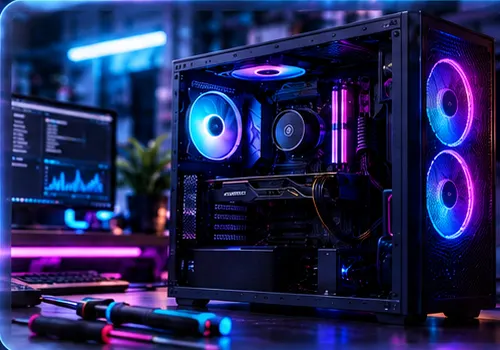
Why Is My PC Running Slowly?
Common causes, simple checks and when it may be time for a repair or upgrade.
Latest Guides
Practical computer help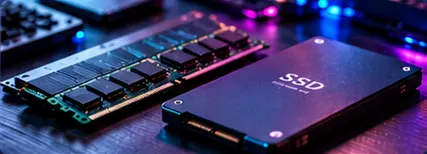
RAM or SSD: Which Upgrade Comes First?

How to Protect Your Computer From Viruses and Malware
What Happens During Remote IT Support?
BadGoats Troubleshooting Guide
Why Is My PC Running Slowly?
A slow computer does not always need replacing. The cause may be a full drive, demanding startup software, overheating, malware or hardware that no longer suits the work you expect it to do.
Start by identifying when it feels slow
Notice whether the delay happens while Windows starts, when opening programs, during games, while browsing, or only when several applications are open. That pattern helps separate a storage, memory, software, temperature or internet problem. An internet fault can make websites and cloud applications feel slow even when the computer itself is healthy.
Check free storage space
Windows needs spare space for updates, temporary files and normal operation. If the main drive is almost full, remove unwanted downloads, clear temporary files and move large personal files to suitable storage. Avoid deleting unfamiliar Windows folders or program files manually.
Review startup applications
Chat clients, game launchers, cloud tools and manufacturer utilities can all start with Windows. Disable only applications you recognise and do not need immediately. Security software, hardware utilities and backup tools may need to remain active.
Install updates and restart properly
Pending Windows, driver or application updates can cause performance and stability problems. Save your work, install trusted updates and perform a proper restart. Repeatedly forcing the power off can corrupt files and create further problems.
Look for heat, unusual noise and malware
Blocked vents, dust, a failing fan or dried thermal material can cause a processor or graphics card to reduce its speed. Unexpected pop-ups, browser redirects, unknown programs and unusually high background activity may indicate unwanted software. Use reputable security tools rather than random “PC cleaner” downloads.
When an upgrade may help
An SSD can transform a computer still using a mechanical hard drive. Additional RAM helps when memory is consistently full. Neither upgrade fixes every problem, so compatibility and the actual bottleneck should be checked before purchasing parts.
When to arrange a diagnosis
If basic checks do not reveal the cause, BadGoats IT Services can assess desktop and laptop performance, software health, storage, memory and temperatures. Workshop visits in Ripley are by confirmed appointment, while suitable software problems may be investigated through remote support.
BadGoats Upgrade Guide
RAM or SSD: Which Upgrade Comes First?
RAM and solid-state storage solve different problems. The correct first upgrade depends on what is limiting your computer.
What an SSD improves
A solid-state drive stores Windows, applications and files. Moving from a mechanical hard drive to an SSD usually improves startup time, application loading, file searches and general responsiveness. It will not normally increase frame rates once a game is running, although games and levels may load faster.
What additional RAM improves
RAM holds information that active programs need quickly. If it fills up, Windows uses slower storage as temporary memory. More RAM can help when many browser tabs, office applications, creative tools, virtual machines or modern games are open together.
Choose an SSD first when…
- Windows is installed on a mechanical hard drive.
- Starting the computer and opening programs takes a long time.
- Disk usage frequently reaches 100% during ordinary work.
- You need more fast, reliable storage for applications and files.
Choose RAM first when…
- The computer already has an SSD but slows with several applications open.
- Memory usage is regularly close to full.
- Games or professional applications specify more memory than is installed.
- The system pauses while switching between active programs.
Do not upgrade by guesswork
A processor, graphics card, cooling problem, damaged drive or unwanted background software may be the real limitation. Checking usage and hardware health first prevents spending money on a part that does not address the problem.
BadGoats upgrade support
BadGoats IT Services can assess compatible RAM and SSD options, explain the expected benefit, install the selected parts and test the computer afterwards. Any work and expected costs are agreed before proceeding.
BadGoats Security Guide
How to Protect Your Computer From Viruses and Malware
Viruses, malware and unwanted software can cause pop-ups, browser redirects, suspicious security warnings and a slow computer. Good protection combines updates, careful decisions, reliable backups and knowing what to do when something looks wrong.
Keep Windows and applications updated
Security updates repair known weaknesses. Enable supported automatic updates, restart when required and remove unsupported software you no longer need. Browsers, office applications, PDF readers and remote-access tools should also remain current.
Use built-in protection properly
For many home users, the security protection included with a supported version of Windows is a sensible foundation when it is active and updated. Avoid installing several real-time antivirus products together because they can conflict and reduce performance.
Common signs of a computer virus or malware infection
An infected PC or laptop may display repeated pop-ups, redirect browser searches, install unknown programs, change the browser homepage, show false security warnings or suddenly become unusually slow. These symptoms do not always prove that the computer has a virus, but they are sensible reasons to arrange proper security checks.
Treat unexpected messages cautiously
Phishing emails and messages often create urgency: a failed delivery, unpaid invoice, expiring account or security warning. Check the sender carefully, avoid opening unexpected attachments and visit the organisation through a known address instead of following a suspicious link.
Download software from trusted sources
Cracked applications, unofficial download portals, browser extensions and fake update notices are common infection routes. Read installation screens and decline unrelated bundled software. Never grant administrator permission simply because a pop-up demands it.
Use strong, separate passwords
A password manager can create and store unique passwords. Enable multi-factor authentication for email, banking, cloud storage and other important accounts. Reusing one password allows a breach at one service to threaten several accounts.
Maintain independent backups
Keep important files in more than one place, with at least one copy that is not permanently writable from the computer. A synchronised cloud folder can help but does not replace a properly managed backup if unwanted changes or ransomware are synchronised too.
Virus and malware removal from BadGoats
If you need help removing a virus from a PC or laptop, BadGoats IT Services can investigate suspicious behaviour, check for viruses, malware, adware and other unwanted software, and remove detected threats where possible. Remote virus and malware support is available across the UK and internationally, subject to the problem being suitable for remote work, technical requirements, time zones and appointment availability. Customers in Ripley and surrounding areas of Derbyshire and Nottinghamshire can also arrange physical inspection and repair when hands-on work is required. Some cases may require data recovery or a clean Windows installation. If an infection may have exposed banking, email or other online-account details, the customer may also need to contact the relevant bank or account provider directly. BadGoats IT Services can explain the recommended next steps but cannot access, secure or recover third-party accounts on behalf of the customer.
BadGoats Remote Support Guide
What Happens During Remote IT Support?
Remote support allows an agreed technician to view or control your computer through a secure connection while you remain present and in control.
Before the appointment
Book through the Remote Support section and describe the problem as clearly as possible. We will confirm whether it appears suitable for remote work, the appointment time and the selected session. Keep the computer powered, connected to the internet and, where appropriate, connected to its charger.
Starting the connection
We explain which connection tool to use and how to obtain it from the correct source. You must give permission before access begins. Do not accept unexpected remote-access requests or provide connection codes to someone who contacted you without an agreed appointment.
During the session
You can see activity on the screen and should remain available to answer questions. We may inspect settings, error messages, update status, software behaviour and system information relevant to the problem. You can end the connection if you are uncomfortable or need the session to stop.
What remote support can help with
- Windows errors, updates and configuration.
- Software installation and troubleshooting.
- Slow performance caused by software or settings.
- Email, browser and general computer guidance.
- Security concerns and unwanted-software checks.
What cannot be repaired remotely
A failed drive, damaged socket, overheating component, broken screen or other physical fault normally requires hands-on inspection. An unstable internet connection may also prevent a useful remote session. If the issue is unsuitable, we will explain the practical next step.
Privacy and preparation
Close private documents and applications that are not required. Back up important work where possible. We only need access relevant to the agreed support request; you should never disclose banking passwords or unrelated account credentials.
After the session
We explain what was found, what was changed and whether further work is recommended. Remote support is available across the UK and, subject to appointment availability and technical requirements, to customers in the EU, USA and elsewhere internationally.